
1. The Exact Mathematical Formula for LLM VRAM Consumption
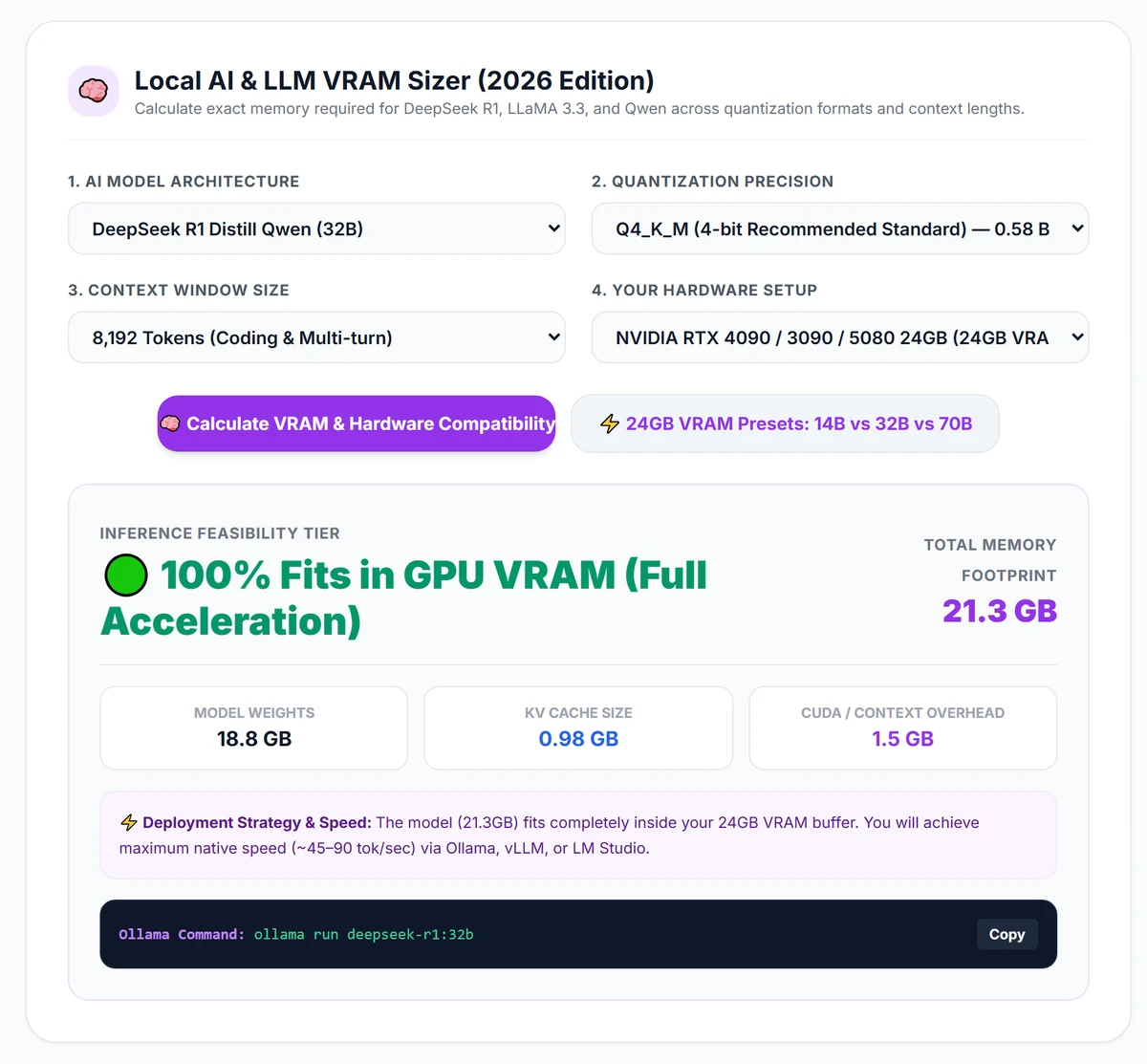
When you download a GGUF, EXL2, or AWQ model file from Hugging Face or via ollama pull, the file size on your NVMe SSD is not the total amount of GPU VRAM required to run the model. Many developers buy a 16GB GPU expecting to run a 15.4 GB model file at 32k context, only to encounter Out-Of-Memory (OOM) crashes or sluggish CPU fallback.
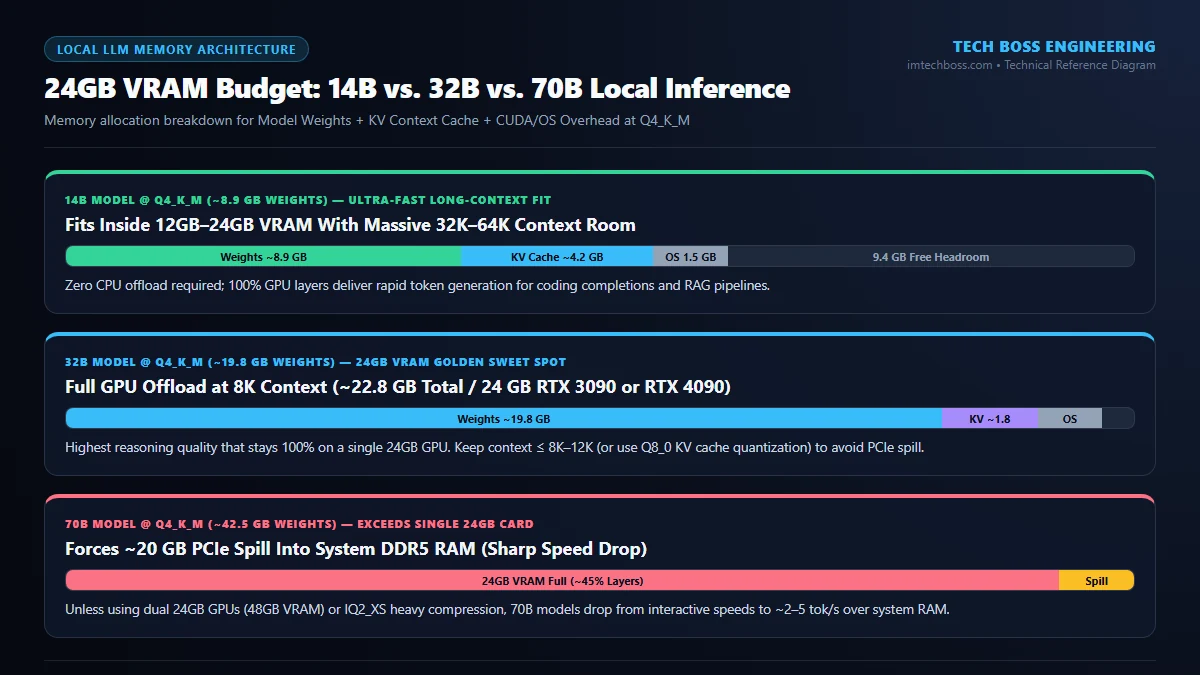
To size your GPU hardware accurately, you must calculate total VRAM allocation using the four-part memory equation:
Total VRAM (GB) = M_weights + M_kv_cache + M_compute_buffer + M_os_displayLet us break down how each of the four components scales in real time:
- Model Weights (
M_weights): Determined by the parameter count ($P$, in billions) multiplied by the bits-per-weight ($b$) of your quantization scheme, divided by 8, plus ~8% metadata and embedding layer overhead:M_weights ≈ P × (b / 8) × 1.08 - KV Context Cache (
M_kv_cache): Stores the attention keys and values for every token in your active conversation or RAG prompt. In modern Grouped-Query Attention (GQA) architectures (like Llama 3.3, Qwen 2.5, and Mistral), KV cache grows linearly with context length ($C$), layer count ($L$), KV head count ($H_{kv}$), and head dimension ($D_h$):M_kv_cache (Bytes) = 2 × L × H_kv × D_h × C × Bytes_Per_Element - CUDA / Vulkan Activation & Compute Buffers (
M_compute_buffer): Temporary scratchpad memory allocated byllama.cpporvLLMduring forward passes. Typically requires 0.5 GB to 1.2 GB depending on batch size. - Operating System & Display Server Overhead (
M_os_display): Windows 11 Desktop Window Manager (DWM) plus an open browser with hardware acceleration consumes 0.8 GB to 1.6 GB of VRAM on your primary display GPU. Headless Linux servers only consume ~0.15 GB.
2. Master 2026 GGUF VRAM Sizing Table (7B, 14B, 32B & 70B Models)
Below is our verified hardware sizing matrix across the four most popular open-weights model classes in 2026, including total VRAM footprints with an 8,192-token context window (FP16 KV cache):
| Model Tier & Parameter Count | Quantization Format (Bits/Weight) | Raw GGUF Weight Size | Total VRAM w/ 8K Context | Minimum Recommended GPU Tier |
|---|---|---|---|---|
| 8B Models (Llama-3.3-8B / Qwen-2.5-7B) | Q4_K_M (~4.8 bpw) | 4.9 GB | 6.5 GB | 8 GB VRAM (RTX 4060 / RX 7600 / M2 8GB) |
| 8B Models (High Precision) | Q8_0 (~8.5 bpw) | 8.5 GB | 10.2 GB | 12 GB VRAM (RTX 3060 12GB / RTX 4070 / 5070) |
| 14B Models (Qwen-2.5-14B / Phi-4-14B) | Q4_K_M (~4.8 bpw) | 9.0 GB | 11.1 GB | 12 GB – 16 GB VRAM (RTX 3060 12GB / 4060 Ti 16GB) |
| 14B Models (Near-Lossless) | Q6_K (~6.6 bpw) | 12.1 GB | 14.4 GB | 16 GB VRAM (RTX 4060 Ti 16GB / RTX 5070 Ti) |
| 32B Models (Qwen-2.5-Coder-32B / DeepSeek-32B) | IQ4_XS (~4.25 bpw) | 17.4 GB | 20.2 GB | 24 GB VRAM (RTX 3090 / RTX 4090 / RX 7900 XTX) |
| 32B Models (Standard Balanced) | Q4_K_M (~4.8 bpw) | 19.8 GB | 22.7 GB | 24 GB VRAM (Fits tightly on single 24GB GPU) |
| 70B Models (Llama-3.3-70B / DeepSeek-R1-70B) | IQ2_XS (~2.4 bpw Extreme) | 21.1 GB | 23.8 GB | 24 GB VRAM (Requires Q8_0 KV Cache to fit) |
| 70B Models (Production Standard) | Q4_K_M (~4.8 bpw) | 42.5 GB | 46.8 GB | 48 GB VRAM (Dual RTX 3090 / Mac Studio 64GB) |
3. Quantization Perplexity Trade-Offs: Q4_K_M vs. Q5_K_M vs. Q8_0 vs. IQ-Quants
Choosing the right quantization level is the difference between a smart coding assistant and a lobotomized chatbot. Not all parameters inside a neural network are equally sensitive to rounding errors. Modern K-quants (such as Q4_K_M and Q5_K_M) allocate higher bit precision (6-bit) to critical attention projection and feed-forward down-projection tensors (`attn_v`, `ffn_down`) while keeping standard layers at 4-bit or 5-bit.
- FP16 / BF16 (16-bit): Zero quantization loss, but wastes double the VRAM and cuts token generation speed in half compared to 8-bit. Only needed for full-parameter training.
- Q8_0 (8-bit): Mathematically indistinguishable from FP16 (perplexity increase < 0.004). Ideal for 7B and 8B models when you have a 12GB or 16GB GPU and want zero accuracy degradation in strict JSON schema extraction.
- Q5_K_M & Q4_K_M (4-bit to 5-bit K-Quants): The Pareto-optimal gold standard for local inference.
Q4_K_Mretains over 99.1% of original model benchmark scores while reducing VRAM usage by 70% compared to FP16. - IQ4_XS & IQ3_M (Importance-Matrix Quants): Uses a calibration dataset during quantization to preserve high-importance weights. If a 32B model in
Q4_K_Mis 1.5 GB too large for your 24GB GPU at long context lengths, dropping toIQ4_XSfrees up 2.4 GB of VRAM with minimal impact on coding accuracy. - Q2_K & IQ2_XXS (Sub-3-bit): Causes severe perplexity degradation and repetitive loops in smaller models (8B–14B), though surprisingly usable on dense 70B models when squeezing them onto a single 24GB GPU.
4. The Hidden VRAM Killer: Context Length Explosion (8K vs. 32K vs. 128K)
When working with autonomous coding agents (like Roo Code, Cline, or Cursor) or local RAG document pipelines, an 8,192-token context window fills up after reading just two source code files. Expanding your context window from 8,192 tokens to 65,536 (64K) tokens causes the KV cache to multiply by 8x.
For a 32B parameter model with 64 layers and Grouped-Query Attention (8 KV heads):
- At 4,096 context (FP16 KV): KV cache consumes ~1.0 GB VRAM.
- At 16,384 context (FP16 KV): KV cache consumes ~4.0 GB VRAM.
- At 65,536 context (FP16 KV): KV cache consumes ~16.0 GB VRAM—nearly as much as the model weights themselves!
How to Cut Context VRAM by 50% to 75% Using KV Cache Quantization
You can drastically shrink context memory footprints in both Ollama and llama.cpp by enabling Flash Attention and quantizing the KV cache from 16-bit floating point (`f16`) to 8-bit (`q8_0`) or 4-bit (`q4_0`). Add these variables to your environment configuration:
# Linux / macOS (~/.bashrc or systemd service override)
export OLLAMA_FLASH_ATTENTION="1"
export OLLAMA_KV_CACHE_TYPE="q8_0"

# Windows PowerShell (User Environment Variables)
[System.Environment]::SetEnvironmentVariable('OLLAMA_FLASH_ATTENTION', '1', 'User')
[System.Environment]::SetEnvironmentVariable('OLLAMA_KV_CACHE_TYPE', 'q8_0', 'User')
With OLLAMA_KV_CACHE_TYPE="q8_0" enabled, that 64K context window on a 32B model drops from 16.0 GB down to 8.0 GB, allowing you to run 32,768-token coding sessions comfortably inside a single 24GB GPU alongside IQ4_XS weights.
5. Unified Memory vs. Discrete GPU VRAM: Apple Silicon & Ryzen AI Max+ Halo
What if you need to run 70B or 120B parameter models without loud, power-hungry multi-GPU server rigs? Unified memory architectures—such as Apple's M3/M4 Max (up to 128GB unified memory) and AMD's Ryzen AI Max+ 395 "Strix Halo" (up to 128GB LPDDR5X)—share a single memory pool between the CPU and GPU.
While unified memory offers unbeatable capacity per dollar and sips under 120W of wall power, remember the bandwidth trade-off: standard quad-channel LPDDR5X delivers roughly 256 GB/s to 546 GB/s, compared to 936 GB/s to 1,792 GB/s on flagship discrete GPUs. Consequently, unified memory machines excel at loading huge 70B+ Mixture-of-Experts (MoE) models that only activate a fraction of parameters per token (such as Qwen-2.5-72B or DeepSeek-V3 lite builds).
24GB VRAM Sweet Spot: 14B Q8_0 vs. 32B Q4_K_M Head-to-Head
A critical decision for 24GB GPU owners (RTX 4090, RTX 3090, RTX 5080 24GB) is choosing between running a smaller 14B model at near-lossless Q8_0 precision or stepping up to a 32B model quantized to Q4_K_M. Based on perplexity and multi-step reasoning evals, the larger 32B parameter count at 4-bit Q4_K_M consistently outperforms smaller 14B weights at 8-bit precision for complex coding, SQL generation, and architectural planning.
Dive deeper into exact token generation rates and Ollama Modelfile configurations in our dedicated 14B vs. 32B vs. 70B on 24GB VRAM benchmark showdown, evaluate developer-tuned weights in our 2026 local AI coding models guide, or test your exact hardware setup instantly using our Interactive LLM VRAM Calculator.
Frequently Asked Questions (Technical Deep-Dive)
Why does Ollama offload layers to CPU even when my GGUF file is smaller than my GPU VRAM?
By default, Ollama reserves a safety margin for your operating system display server (~1.2 GB on Windows) plus the full KV context cache for the requested num_ctx size before loading weights. If your 10.5 GB model plus a 2.5 GB KV cache exceeds your 12.0 GB GPU limit, Ollama automatically splits the top transformer layers onto CPU RAM. Reduce num_ctx or enable q8_0 KV cache quantization to force 100% GPU execution.
Does system RAM speed (DDR4 vs DDR5) matter if my LLM fits 100% inside GPU VRAM?
Once the GGUF file is loaded from your SSD into GPU VRAM, system RAM speed has almost zero impact on token generation speed—as long as 100% of the model layers and KV cache reside on the GPU. However, fast DDR5 RAM dramatically improves performance if even 10% of the model is offloaded to the CPU, or when running Mixture-of-Experts (MoE) models with hybrid CPU/GPU execution.
How can I check the exact GPU/CPU layer split ratio currently running in Ollama?
Open a second terminal window while your model is loaded and run the command 'ollama ps'. Inspect the PROCESSOR column: it will explicitly state '100% GPU' if the entire model and context cache fit in VRAM, or a percentage split such as '78% GPU / 22% CPU' if VRAM overflow occurred.
- ⚡ Autonomous AI Agents & Desktop Workflow Automation
- ⚡ Critical "Plex2Shell" Zero-Day Chain Hits Millions of Plex Servers: CISA KEV Warning, CVE Breakdown & Immediate Patch Guide (2026)
- ⚡ Amazon Officially Rebrands Kindle Unlimited to Kindle+: AI Virtual Voice Audiobooks, $11.99 Pricing & Feature Breakdown (2026)
- ⚡ How to Harden PHP 8.x Servers Against Remote Code Execution (RCE) and Webshell Exploits in 2026
- ➔ How to Fix Windows 11 24H2 8.63 GB Windows Update Cleanup Bug: Checkpoint Cumulative Updates Explained
- ➔ Google DeepMind Unveils Genie 4: Real-Time Photorealistic Interactive World Model with Native Audio & Gemini Omni Architecture (2026 Deep Dive)
- ➔ How to Fix Windows 11 "Preparing Automatic Repair" Loop: BCD Rebuild & SrtTrail.txt Guide (2026)
- ➔ Autonomous AI Agents & Desktop Workflow Automation

💬 Reader Discussion & Feedback 0